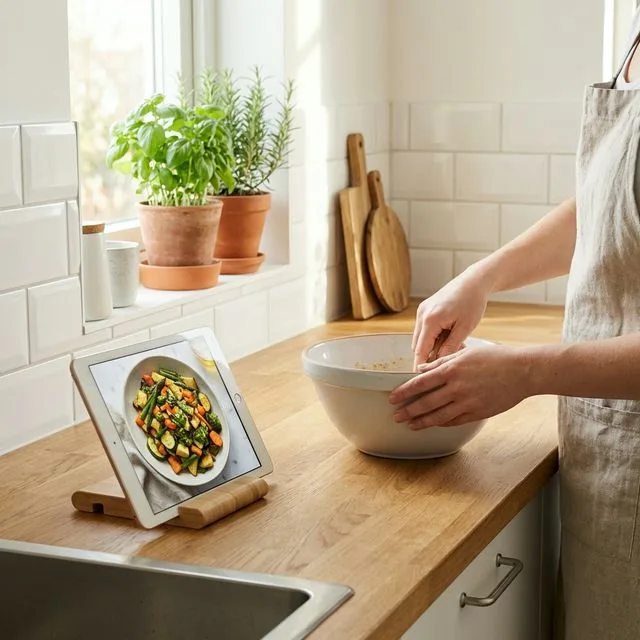
You're in the middle of making meatballs. Your hands are covered in raw meat. You need to check the next step in the recipe. Normally, you'd have to wash your hands, dry them, unlock your phone, scroll, then wash again.
Cook Mode solves this. It's designed for actual cooking - when your hands are messy, when you're moving fast, when you can't stop to fiddle with your device.
What Is Cook Mode?
Cook Mode is a special interface that makes recipes easier to follow while you're actively cooking. It displays one step at a time in large, clear text. The screen stays on. You can navigate with voice commands or simple gestures. Timers integrate directly into the workflow.
It's the difference between a recipe you read before cooking and a recipe that guides you through cooking.
Starting Cook Mode
Open any recipe and tap the "Cook Mode" button. The interface changes immediately.
The screen reorganizes: one step fills the display in large, readable text. Navigation controls are big and obvious. Distractions disappear. Everything focuses on helping you cook this recipe right now.
Your screen will stay on as long as Cook Mode is active. No more unlocking your device every two minutes.
Voice Control
This is Cook Mode's killer feature. You can navigate entirely by voice.
Say "Next step" to move forward. "Previous step" to go back. "Repeat" to hear the current step again. "Set timer for 10 minutes" to start a timer.
The voice recognition works even in noisy kitchens. It's designed to understand you over running water, sizzling pans, and kitchen chaos.
You don't need to touch your device at all. Hands covered in dough? No problem. Just talk to it.
Step-by-Step Navigation
Cook Mode breaks recipes into individual steps and shows them one at a time. This prevents overwhelm and helps you focus.
Each step shows:
- What to do (the instruction)
- What you need (ingredients for this specific step)
- How long it takes (if applicable)
- Any relevant timers
You see exactly what you need for the current action. Nothing more.
When you complete a step, move to the next one. The interface tracks your progress through the recipe.
Timer Integration
Timers are built into Cook Mode. When a step says "simmer for 20 minutes," a timer button appears right there.
Tap it (or say "start timer") and the timer begins. You don't leave the recipe. The timer runs in the background, and Cook Mode alerts you when it's done.
Multiple timers can run simultaneously. If you're boiling potatoes and simmering sauce, both timers track independently.
When a timer finishes, you get a notification even if you've moved to another step or left Cook Mode temporarily.
Hands-Free Gestures
If voice control isn't practical (maybe you're on a call or someone's sleeping), gesture controls work too.
Swipe right to go to the next step. Swipe left for the previous step. Tap anywhere on the screen to pause/resume voice control.
The gestures are simple and forgiving. You don't need precision - a quick swipe with your elbow or knuckle works fine.
Screen Always On
While Cook Mode is active, your screen won't dim or lock. This seems simple, but it's crucial.
You can glance at your device anytime to check the current step. No unlocking, no tapping. Just look and see what you need to do next.
When you're done cooking, exit Cook Mode and your normal screen timeout resumes.
Ingredient Scaling
If you scaled the recipe before starting Cook Mode, all measurements update automatically. The steps show the scaled amounts.
This prevents confusion. You don't have to remember "I doubled this, so I need twice as much." Cook Mode shows you exactly what you need for the scaled version.
Notes and Substitutions
If you added notes or substitutions to the recipe, they appear in the relevant steps.
For example, if you noted "use oat milk instead of regular milk," that note appears when you reach the step that uses milk.
Your customizations integrate seamlessly into the cooking experience.
Practical Tips
Position your device carefully: Put it where you can see it easily but where it won't get splashed or knocked over. A tablet stand works great. Propping a phone against a jar works too.
Test voice control first: Before you start cooking, try the voice commands. Make sure your device hears you clearly in your kitchen environment.
Adjust text size: Cook Mode lets you increase text size if needed. Bigger is better when you're glancing from across the kitchen.
Use timers liberally: Even if a step doesn't explicitly mention a timer, you can set one. "Remind me in 5 minutes" works great for checking on something.
When Cook Mode Shines
Cook Mode is most valuable for:
Complex recipes: Multiple steps, precise timing, lots of ingredients. Cook Mode keeps you organized.
Messy cooking: Bread dough, meatballs, anything that makes your hands unusable. Voice control is essential.
Time-sensitive recipes: When timing matters, integrated timers and step-by-step guidance prevent mistakes.
Learning new techniques: When you're trying something unfamiliar, having clear, focused instructions helps.
When You Might Not Need It
For simple recipes you know well, Cook Mode might be overkill. If you're making scrambled eggs or heating soup, the full recipe view works fine.
Cook Mode is a tool. Use it when it helps. Skip it when it doesn't.
Exiting Cook Mode
When you're done, tap "Exit Cook Mode" or say "exit cook mode." The interface returns to the normal recipe view.
Your progress is saved. If you exit and return later, Cook Mode remembers where you were.
Making It Work for You
Everyone's kitchen is different. Experiment with Cook Mode to find what works best for you.
Some people use voice control exclusively. Others prefer gestures. Some use a mix depending on what they're cooking.
The interface adapts to your preferences. Try different approaches and settle on what feels natural.
The Real Benefit
Cook Mode isn't about fancy technology. It's about removing friction from cooking.
When you can focus on the food instead of managing your device, cooking becomes more enjoyable. You're present in the process, not distracted by screens and scrolling.
That's what good cooking tools do - they get out of your way and let you cook.
Try Cook Mode next time you're making something involved. See if it changes how you interact with recipes. For many people, it transforms digital recipes from reference documents into active cooking partners.
Keywords: cook mode, hands-free cooking, voice control cooking, recipe app features, digital cooking assistant, kitchen technology, cooking tools
Meta Description: Learn how to use Cook Mode for hands-free cooking. Voice control, step-by-step navigation, timer integration, and practical tips for cooking without touching your screen.